
How Much RAM Do You Actually Need to Run AI Models at Home?
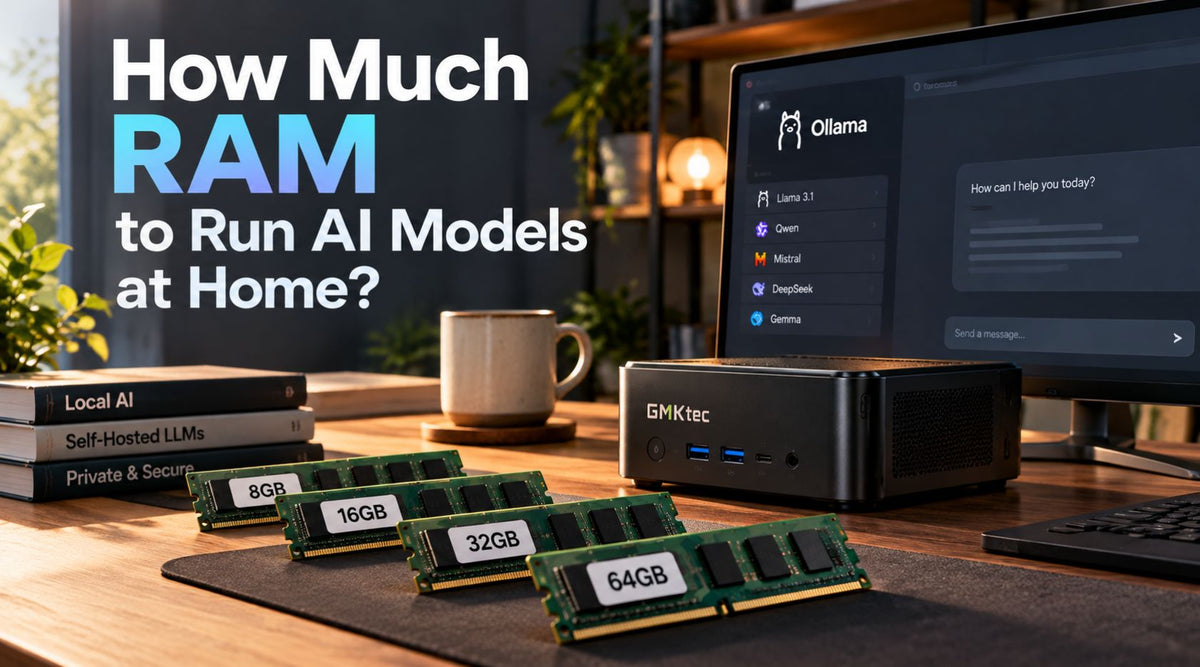
Maybe you’ve been thinking about running AI on your own computer with something like Ollama or LM Studio. No subscription. No sending your private notes to somebody else’s server. No “you’ve hit your limit” message at the worst possible moment.
Then you open a model page, see technical labels like Q4_K_M and 70B, notice a 40GB download, and the real question lands: How much RAM do you need to run an LLM locally?
Here's the short version. 16GB is enough to get started with small models, 32GB is the sweet spot for most people, and 64GB or more only starts to matter when you want the big 70B-class models. The longer answer is the useful part, though, because RAM doesn't just decide whether a model fits. It also affects how fast the model feels and how much of your conversation it can remember. We'll go through it in plain English, no maths degree needed.
The quick answer (if you're in a hurry)
-
8GB RAM: tiny models only (around 3–4 billion parameters). Fine for experimenting, frustrating for real work.
-
16GB RAM: 7B–8B models run comfortably. This is a good place to start.
-
32GB RAM: 14B models with room to spare, and 30B-class models too. Best value for most home setups.
-
64GB RAM: 70B models at 4-bit fit, and you get space for longer conversations. Works, but it won't be fast on every machine.
-
96GB–128GB: big mixture-of-experts models and long documents. Enthusiast and home-lab territory.
Want to know why those numbers are what they are? Keep reading. Once you understand the logic, you'll be able to work out your own number for any model.
The simple maths behind RAM and AI models
An AI model is basically a giant pile of numbers called weights. The count of those numbers is the 'parameters' you see in the name, so a 7B model has about seven billion of them. To run the model, all of those numbers need to sit in memory at the same time.
So the rough formula is:
RAM needed for the model ≈ number of parameters × bytes per parameter
How many bytes each number takes depends on its precision. At full precision (called FP16) each one takes 2 bytes. At 8-bit it's about 1 byte. At 4-bit it's about half a byte, a little more in practice.
Here's what that looks like for common model sizes:
|
Model size |
Full precision (FP16) |
8-bit |
4-bit (most popular) |
|---|---|---|---|
|
7B–8B |
~14–16GB |
~8GB |
~4.5–5GB |
|
14B |
~28GB |
~15GB |
~8–9GB |
|
32B |
~64GB |
~34GB |
~19–20GB |
|
70B |
~140GB |
~75GB |
~40–43GB |
These are approximate. Real file sizes shift a little depending on the model and the format, but they're close enough to plan with.
Think of it like packing a suitcase. The number of parameters is how many clothes you own. The precision is how tightly you pack them. Vacuum-seal everything and the same wardrobe fits in a much smaller bag. You lose a tiny bit of crispness, but you can actually carry it.
That vacuum-sealing has a name, and it's the next thing worth understanding.
Quantization in plain
Almost everyone who runs AI models at home uses quantized models. Quantization just means storing each number with fewer bits, so the model takes up less space.
The 4-bit versions are the sweet spot. They cut the size by roughly 75% compared with full precision, and for everyday jobs like chatting, writing, summarising and answering questions, most people can't tell the difference. The 8-bit versions are a bit closer to the original, but they need double the memory of 4-bit.
Go lower than 4-bit and things start to slip. 2-bit and 3-bit models tend to get repetitive, make more mistakes, and lose the thread of longer answers. They exist so that a big model can squeeze into a small machine, but the squeeze shows.
Our rule of thumb is simple. Start with 4-bit. Move up to 8-bit only if you have RAM to spare and you care about squeezing out every bit of quality, for example with coding work.
Why the model's file size isn't your real RAM number
This is the part most guides skip, and it's why people buy a machine that 'should' work and then wonder why it crawls. The model file is only part of the story. Three other things eat memory too.
1. The context window. This is the model's short-term memory, everything it can 'see' in the current conversation. As your chat or your pasted document gets longer, the model keeps extra working data in memory (it's called the KV cache). A short chat barely notices. A very long document, tens of thousands of words, can add several gigabytes depending on the model.
2. The software itself. Tools like Ollama and LM Studio need memory for their own buffers and runtime. It's not huge, usually somewhere between a few hundred megabytes and a couple of gigabytes, but it counts.
3. Everything else on your computer. Windows 11 with a browser and a few apps open can easily use 6–8GB before you've loaded a single model.
So here's a safer formula:
Model file size + 20–30% extra + 4–8GB for your system
Let's say you want a 32B model at 4-bit, which is about 20GB. Add roughly 25% and you're near 25GB. Add 6GB for the system and you land at 31GB. Technically that fits in a 32GB machine, but only just, and you'll be closing Chrome tabs to make it work. That's the gap between 'it runs' and 'it runs comfortably'.
How much RAM do you need? Tier by tier
8GB: demo territory
With 8GB you're limited to small models in the 3–4B range, such as Llama 3.2 3B or Gemma 3 4B. They're fine for summarising a short email or answering simple questions. They'll also make obvious mistakes on anything tricky. If your computer already has 8GB, it's a fun way to try things out. We wouldn't buy a machine with 8GB for this.
16GB: where most people start
A 7B or 8B model at 4-bit takes about 5GB, which leaves plenty of room for the system and a decent context window. Models like Llama 3.1 8B and Qwen3 8B run well here. Some 12–14B models will squeeze in if you close other apps. For writing help, brainstorming, summarising and basic coding questions, 16GB is genuinely useful.
32GB: the sweet spot
This is the tier we recommend to most people asking about RAM for a local LLM. A 14B model fits easily, and so do the newer 30B-class mixture-of-experts models (more on those below), which sit around 18–19GB at 4-bit and run surprisingly quickly. You can also fit a 32B model if you're careful. You get a real jump in quality over the 7B–8B models without paying for a monster machine.
64GB: 70B models become possible
A 70B model at 4-bit is roughly 40–43GB, so a 64GB machine can hold it with room for the system and some context. This is where models like Llama 3.3 70B live. Be warned, though: fitting and running fast are two different things, and we'll get to speed in a moment.
96GB to 128GB: the big leagues
At this size you can run very large mixture-of-experts models such as gpt-oss-120b, which takes roughly 60–65GB, and still have space for long documents and normal apps. It's also enough to run more than one model at once, for example a big one for hard questions and a small one for quick tasks.
RAM or VRAM: which one actually matters?
You'll see people argue about this, so let's clear it up.
If your computer has a dedicated graphics card, the best experience comes from fitting the whole model inside the card's own memory (VRAM). Most consumer cards have somewhere between 8GB and 24GB. A model that's bigger than the VRAM can spill over into your normal system RAM, and it works, but it gets a lot slower.
Mini PCs with integrated graphics, and Macs, work differently. They use one shared pool of memory, often called unified memory, for both the processor and the graphics. The graphics side can claim a big chunk of it. That's why a mini PC with 64GB or 128GB can load models that a 24GB graphics card simply can't. AMD says its Ryzen AI Max+ chips can dedicate up to 96GB of a 128GB machine to graphics, for example.
It's also why mini PCs have become so popular for home AI. You don't need a tower full of expensive graphics cards. You need a lot of fast, shared memory.
Capacity isn't everything: memory speed matters too
RAM capacity decides whether a model fits. Memory speed (bandwidth) decides how fast it talks.
Here's why. To produce each word, the computer has to read through most of the model's weights. So the speed limit is roughly.
A typical laptop or desktop with dual-channel DDR5 has somewhere around 80–100GB/s of bandwidth. Run a 40GB 70B model on that and the ceiling is about 2 tokens per second. That's a word every second or so. It works, but you'd feel the wait on every answer. A 5GB 8B model on the same machine can reach well over 10 tokens per second, which feels smooth.
Systems with faster unified memory do better. A machine with around 256GB/s of bandwidth has a ceiling closer to 6 tokens per second on that same 70B model. Real-world speeds usually land below these ceilings, but the pattern holds: bigger model, slower answers, unless your memory is quick.
This is why we don't tell people to just buy as much RAM as possible. Buy the amount that fits the models you actually want to use, and pay attention to how fast that memory is.
The trick that changes the maths: mixture-of-experts models
Most models are 'dense', meaning every parameter works on every word. Mixture-of-experts (MoE) models are built differently. They contain lots of specialist sections, but only a few of them wake up for each word.
Take Qwen3-30B-A3B. It has 30 billion parameters in total, but only about 3 billion are active at a time. You still need RAM to hold all 30 billion (around 18–19GB at 4-bit), but it generates text at the speed of a much smaller model. OpenAI's gpt-oss-120b works the same way: roughly 117 billion parameters in total, around 5 billion active per word.
The takeaway is that MoE models need lots of RAM but not lots of memory speed. That's exactly the situation where a 64GB or 128GB unified-memory mini PC shines, and it's a big reason local AI got a lot more practical over the past year.
What we'd pick at each level
If you're looking for an AI-ready system, here are a few AI Agent Boxes that match the RAM recommendations above and make running local LLMs much easier.
Starting out, around 32GB. The GMKtec M5 Ultra comes with 32GB and sat around $599 at the time of writing. It uses an older-generation chip, so don't expect speed with the bigger models. For 7B–14B models, light automation and an always-on home assistant box, it's a sensible, affordable place to begin.
Stepping up, 64GB. The GMKtec EVO-X1 Pro has 64GB (around $1,599 when we wrote this). That's enough room for a 70B model at 4-bit, plus the larger context windows you'll want for longer documents.
Build it your way. The GMKtec EVO-T1 is sold barebone, so you choose your own RAM and storage. That's flexible, but check current memory prices before you decide, because RAM costs have been swinging a lot lately.
Going big. The GMKtec EVO-X2 is built on the Ryzen AI Max+ 395, which is exactly the shared-memory design we described above. If 70B-class and large MoE models are your goal, this is the type of machine to look at. Check the memory configuration on the product page, because that number is what you're really buying.
Not sure which one suits you? Our AI agent boxes collection has all of them side by side.
Common mistakes to avoid
Buying for the processor and ignoring memory. For local AI, memory size and memory speed usually matter more than the CPU model.
Forgetting that your system needs RAM too. A 20GB model doesn't fit nicely into a 24GB machine once the operating system has taken its share.
Assuming more RAM means faster answers. It means bigger models fit. Speed comes from memory bandwidth and your chip.
Picking a model that fits exactly. Leave about 20–25% headroom. A model that barely fits will stutter the moment your conversation gets long.
Forgetting you can't always upgrade later. Many modern mini PCs and laptops solder the memory onto the board. If your machine does, the amount you buy is the amount you keep. Check before you order.
Using 2-bit models to cheat the system. A smaller model at 4-bit usually beats a bigger one crushed down to 2-bit.
How to work out your own number (3 steps)
-
Pick the model you want to run. Look at its size, such as 8B, 14B, 32B or 70B.
-
Choose 4-bit unless you have a reason not to. Use the table above to find the file size.
-
Do the sum: file size × 1.25, then add 6GB for your system. Round up to the next RAM size that exists.
A quick example. You want a 14B model at 4-bit, about 9GB. Times 1.25 is roughly 11GB. Add 6GB and you get about 17GB. A 16GB machine would be tight, so 32GB is the comfortable choice, and it also gives you room to grow into bigger models later.
Frequently asked questions
Can I run an LLM with 8GB of RAM?
Yes, but only small ones, around 3–4B parameters. They're good for simple tasks and for learning how local AI works. For anything more demanding you'll want 16GB at the very least.
Is 16GB of RAM enough to run AI models locally?
It's enough for 7B–8B models and some 12–14B models if you close other apps. It's a good starting point, but if you plan to try bigger models, 32GB gives you a lot more freedom.
Does more RAM make a local LLM faster?
Not directly. More RAM lets you run bigger models and longer conversations. Speed depends mostly on your memory bandwidth and your processor or graphics chip. Adding more RAM to a machine that already fits your model won't speed it up.
Can I use my SSD instead of RAM?
Technically yes, through swap, but it's painfully slow. Your SSD is many times slower than RAM, so a model that spills onto it can take many seconds per word. We'd call it a last resort, not a plan.
How much RAM do I need to run a 70B model?
At 4-bit, a 70B model needs roughly 40–43GB for the model alone. Add the context window and your system and you're looking at 64GB as a realistic minimum. If you want comfortable speeds, look for fast unified memory as well.
The bottom line
So, how much RAM do you need to run an LLM locally? For most people the honest answer is 32GB. It's enough for strong 14B–30B models, it doesn't cost the earth, and it leaves room to breathe. Go to 16GB if you're just testing the waters, and go to 64GB or more only if you've decided that 70B-class models are what you want.
Whatever you choose, leave headroom, remember that speed depends on memory bandwidth as well as size, and start with 4-bit models. Get those three things right and you'll avoid the most common (and most expensive) mistakes.
Get the next guide first
Join the Future List for new-drop alerts, setup guides and 10% off your first order.


